POS Flow
With Flow, you can make and receive in-person payments using cards through the POS device (Maquinita).

How to activate in-person payments with Flow POS?
If you are a merchant and want to start accepting card payments through the Flow POS device, follow these steps:
- Create your account. Sign up on our Flow website.
- Request your POS. Send a request to soporte@flow.cl to obtain your Flow POS device.
- Activate your device. Once you have the POS in your possession:
- Log in to the Flow Private Portal and go to the Integrations module, located in the left-hand menu.
- Select the POS option and click Generate code, then enter the code into your POS device.
- After entering the code, the device will automatically start a configuration process. Wait until it finishes before continuing.
- Once the data is loaded and confirmed, click the Activate Device button to access the main menu.
In-person payments
This option allows customers to make in-person payments using cards through the Flow POS device.
- To make a new sale, go to the main menu of your POS and click the Nuevo cobro button.
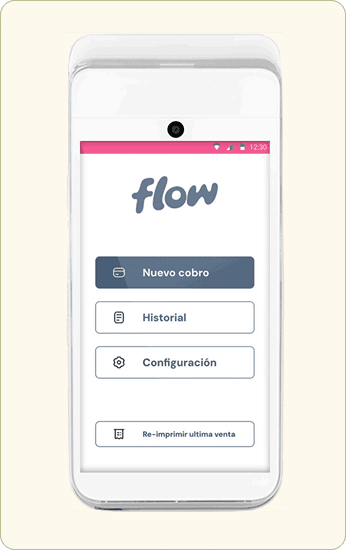
- Enter the amount to charge your customer.
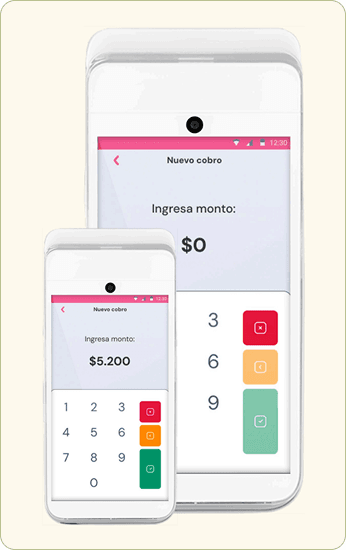
- Once the amount is entered, click Accept and hand the device to your customer. They can pay by tapping (contactless), inserting the chip, or swiping the card.
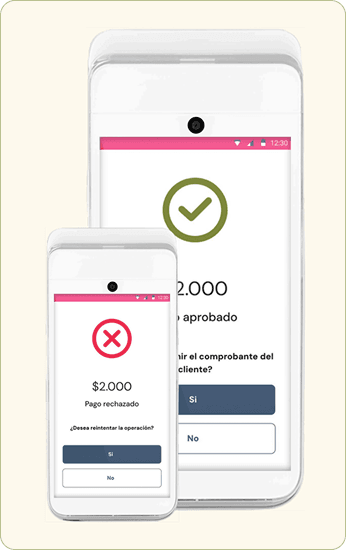
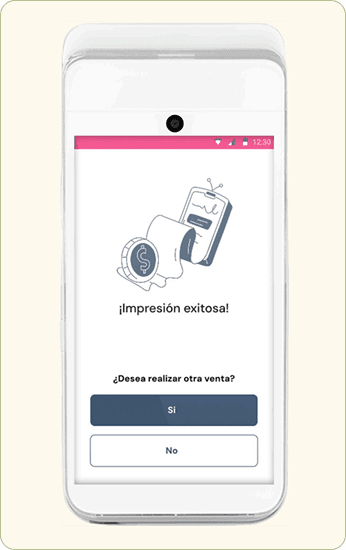
- Once the transaction is completed, the option to print the receipt for your business will appear on the screen. After printing (or skipping printing), you will be redirected to the POS main menu.
If you want to learn more about using the POS, check the full manual here.